
- Training
- Service
- Promotion
- Schedule
- Testing Center
- News
- Contact
8/17/2020


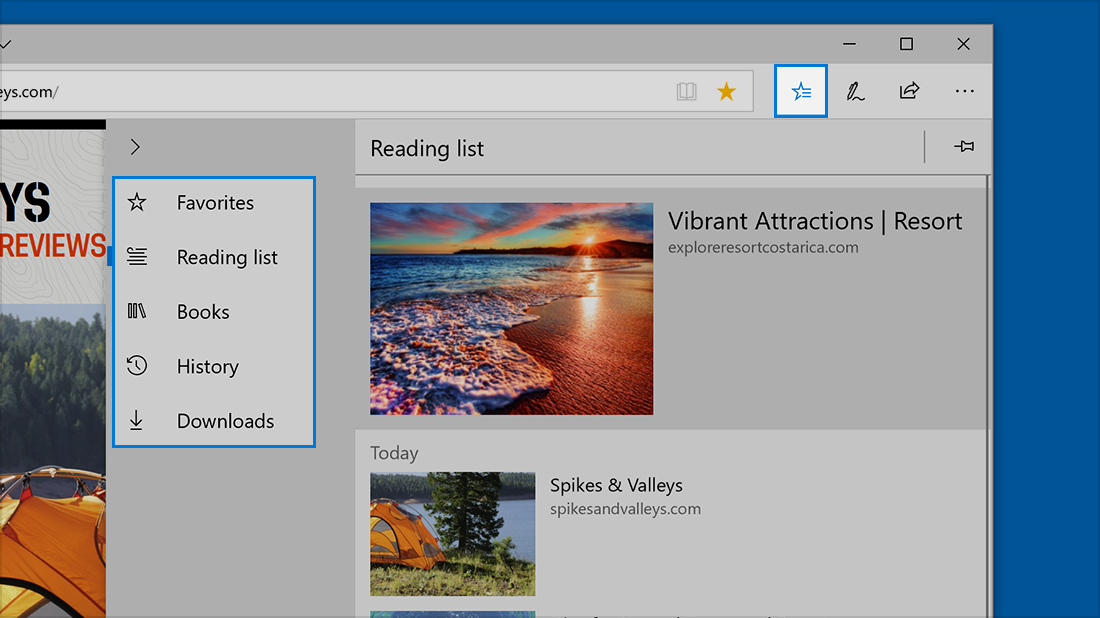
The Favorites is where you’ll find Favorites, Reading list, Books, History, and Downloads all in one place.
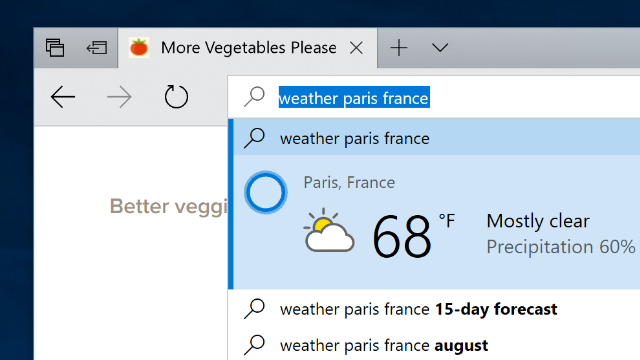
In Microsoft Edge, save time by typing your search in the address bar. You'll get search suggestions, results from the web, and your browsing history right there.
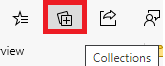
Click Collection as below picture:
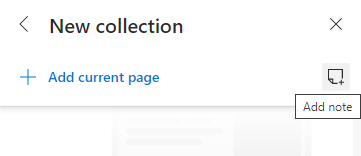
Click Add current page to save tabs:

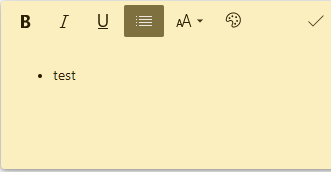
In Microsoft Edge, select Settings and more > More tools > Add Notes. Draw or write what you want on the page, and then Share it with people in different ways, like email or social media.
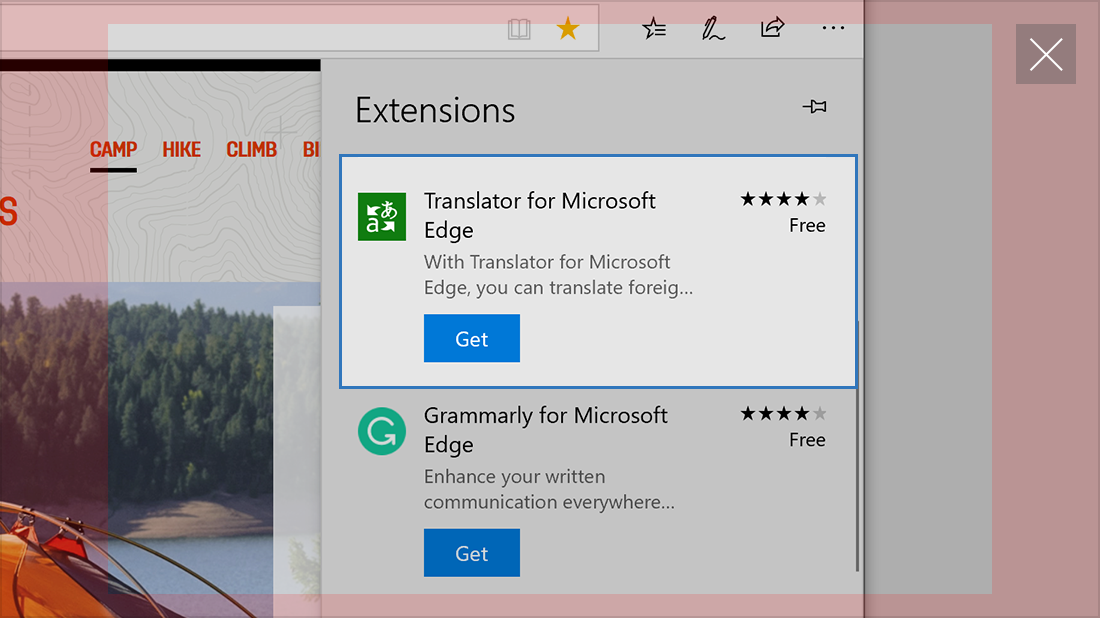
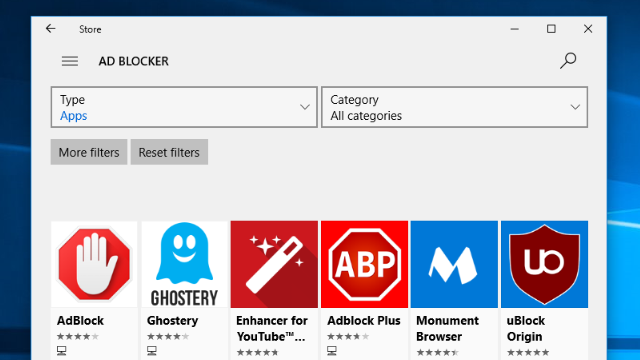
In Microsoft Edge, select Settings and more > Extensions > Get extensions for Microsoft Edge to install the extension from the Store. Then, follow the instructions to turn it on and use it.
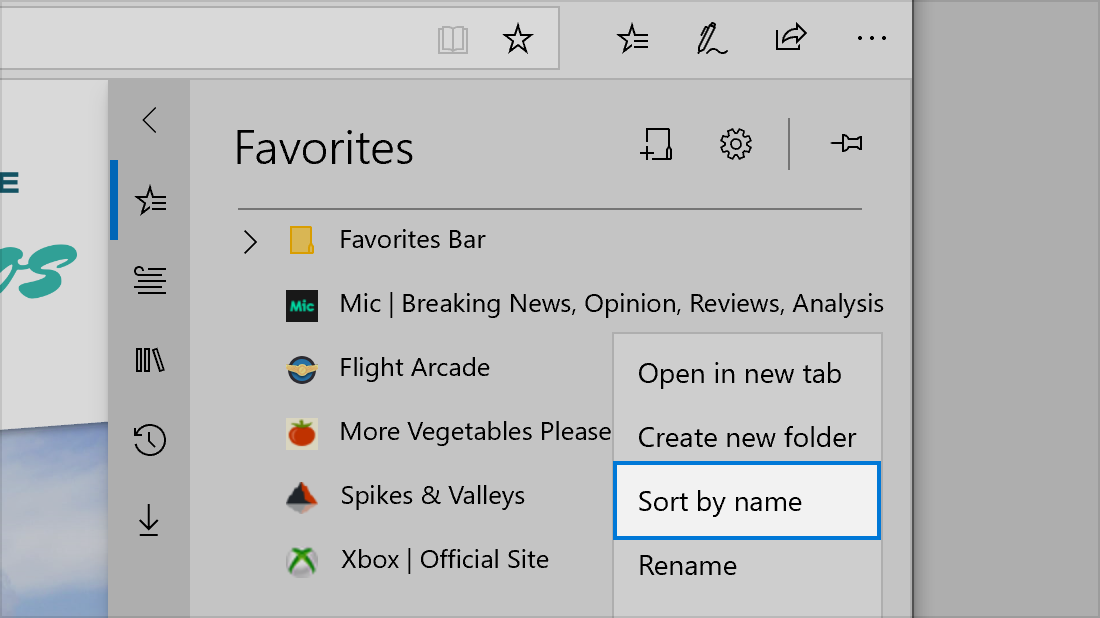
To sort your favorites alphabetically, select Favorites > Favorites, then press and hold (or right-click) any item in the list and choose Sort by name.
Choose View site information in address bar > Site permissions.

Bên phải mục Settings > chọn Media Auto play.
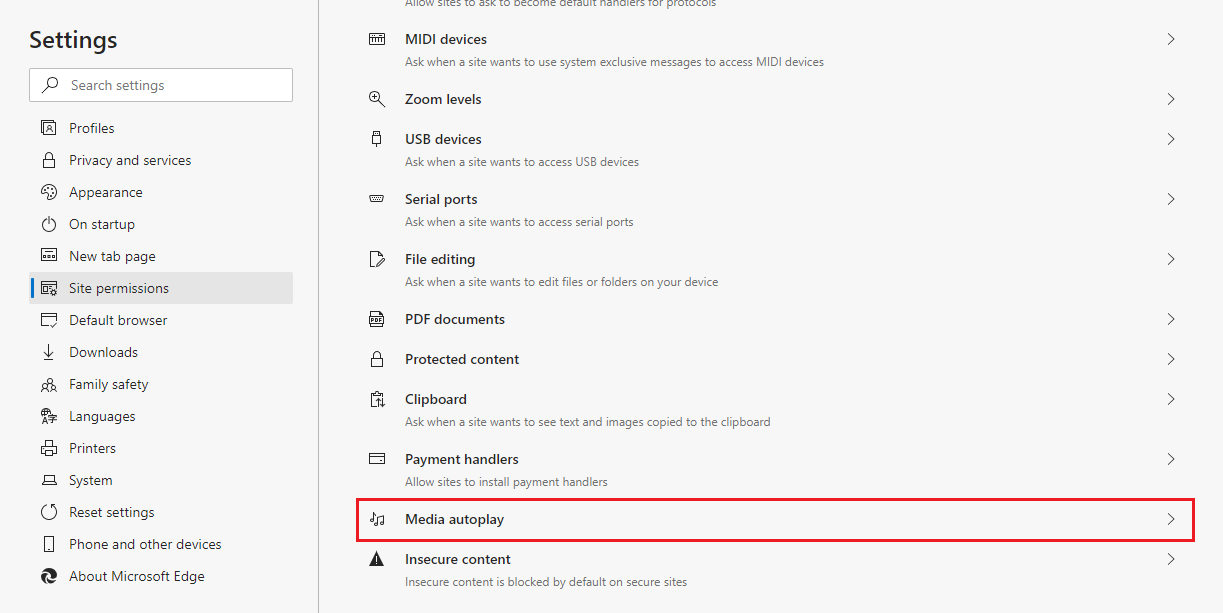
Từ Allow chuyển thành Limit
Ghi chú: bạn cần F5 trang web để áp dụng
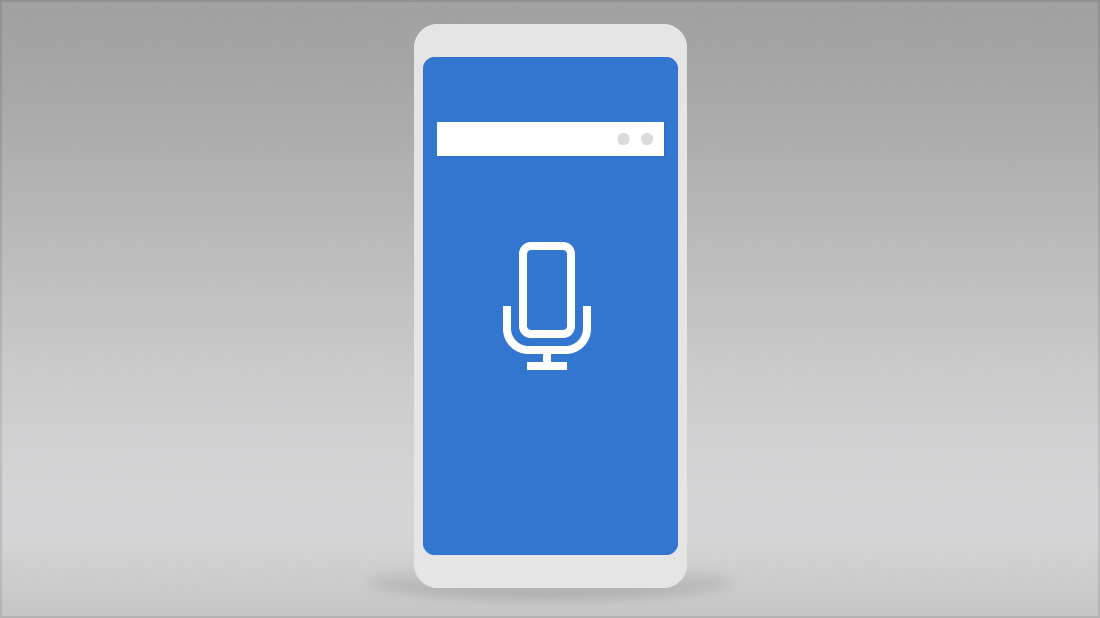
Use your voice to search the web. Open Microsoft Edge on your phone, tap the microphone in the web address bar, and talk.
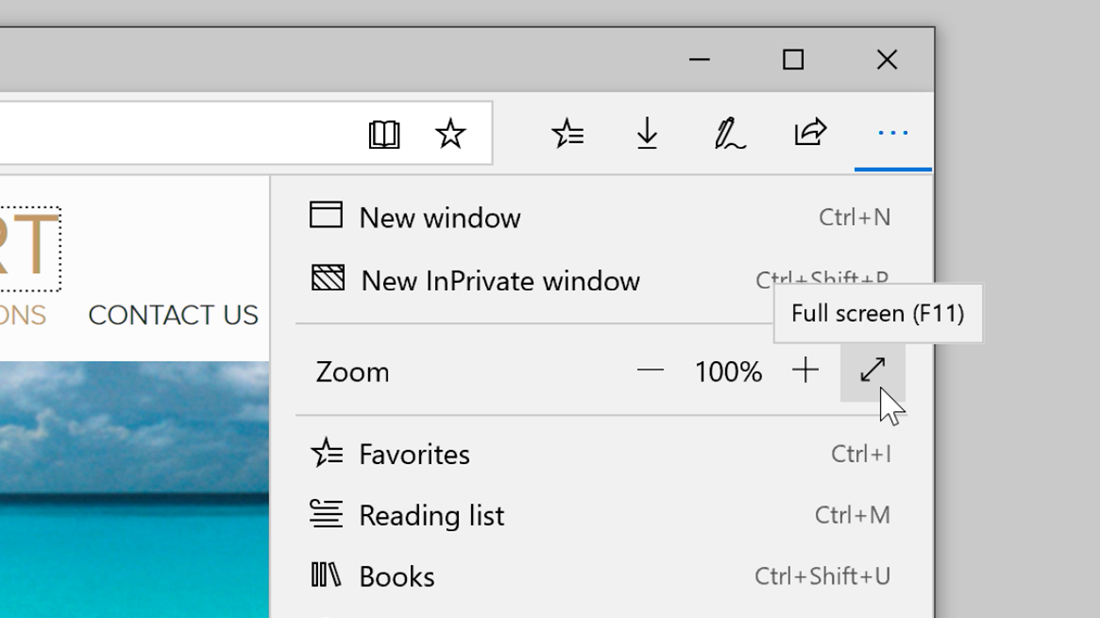
Select Settings and more > Full screen to hide things like the address bar and other items from view. To exit full-screen view, press F11.
Choose Settings and more > Settings > Appearance > Default theme

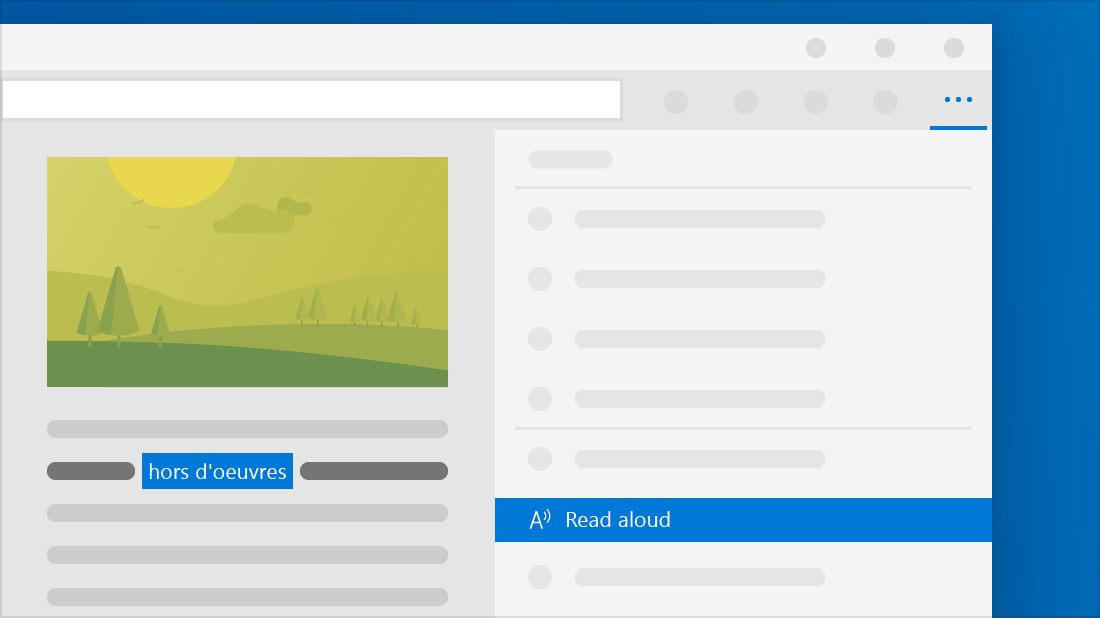
Microsoft Edge can read PDFs, e-books, and even website content out loud to you. For e-books, click or tap anywhere on the page, and then select Read aloud. For sites, select Settings and more > Read aloud.
In Microsoft Edge, select Settings and more > Extensions > Explore more extensions, and then install an extension that blocks ads.
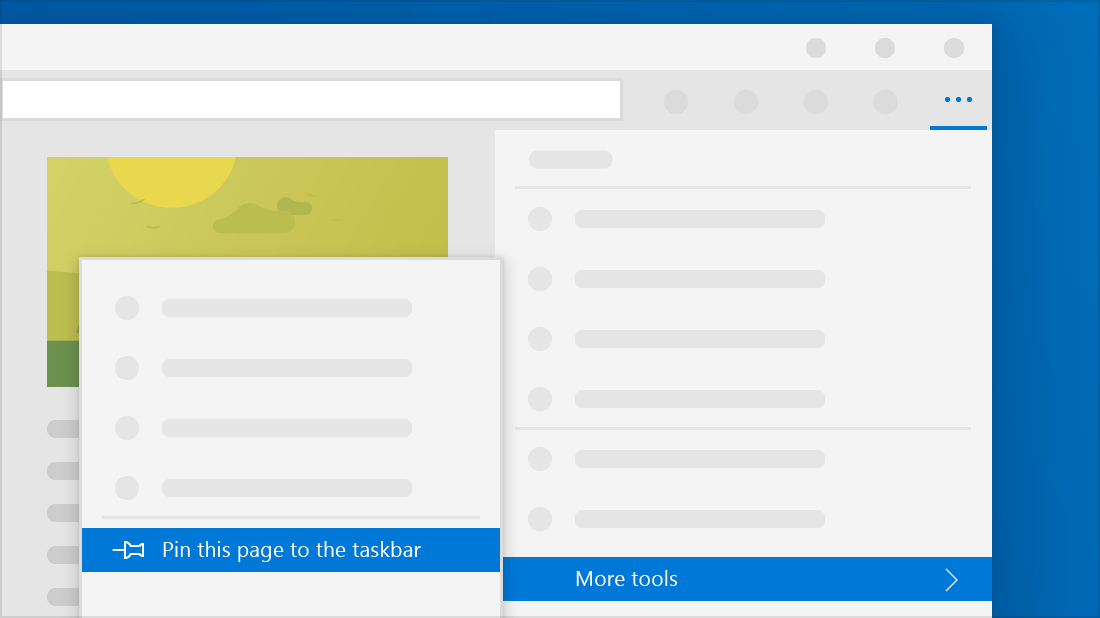
Get to websites from the taskbar. In Microsoft Edge, open a site, select Settings and more  > Pin this page to the taskbar
  .
.
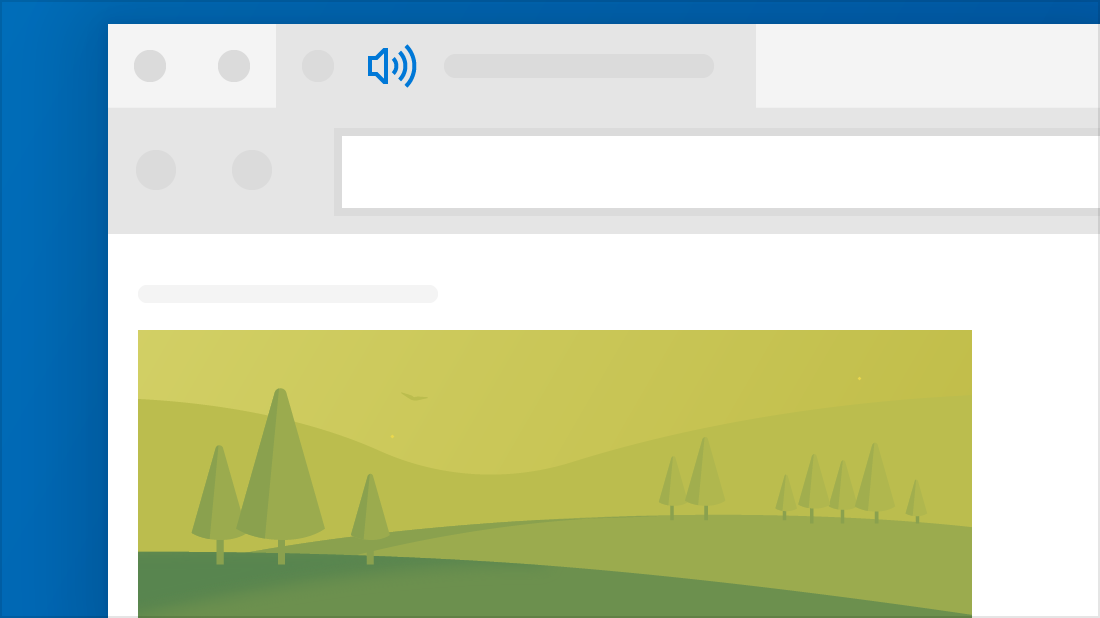
Mute web pages that automatically play audio with a single click. Select the speaker  icon on the tab that is playing audio to turn it off. Select the speaker
  icon again to turn the sound back on.

12/11/2025


